Avatar Rating Control

Setup guides & tutorials
  ← Back to Dashboard
Avatar Rating Studio · Help Center

Let's get your stream ready ✨

Follow the setup guides one step at a time. Screenshots and a video walkthrough can be added here to help you get connected without guesswork.

Setup guides

Work through these sections in order for the easiest setup.

5 guides · step by step
 
   
01

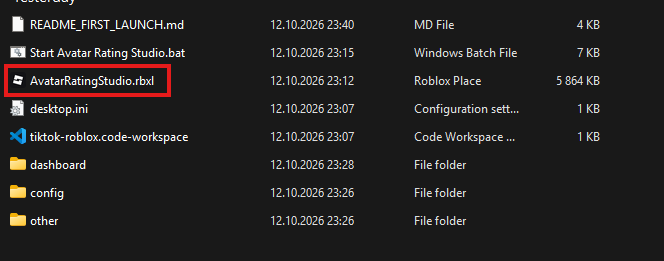
Open Roblox Studio

Start the Avatar Rating game first


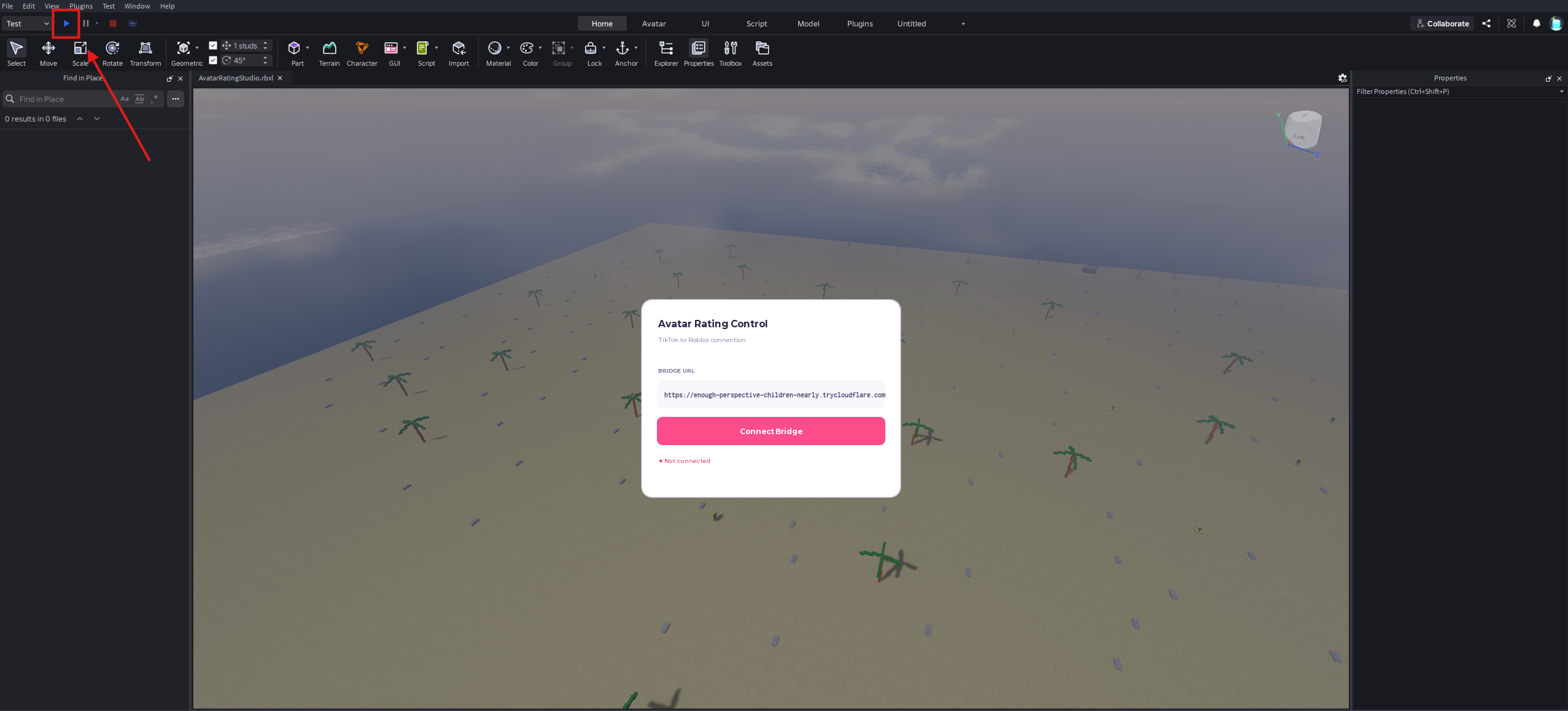
  1. 1Open AvatarRatingStudio.rbxl in Roblox Studio.
  2.        
  3. 2Press Play to start the game in a local test session.
  4.        
  5. 3Leave the game running while you finish the next setup steps.
  6.      


02

Set up and start TikTok LIVE

Go LIVE before launching the bridge app


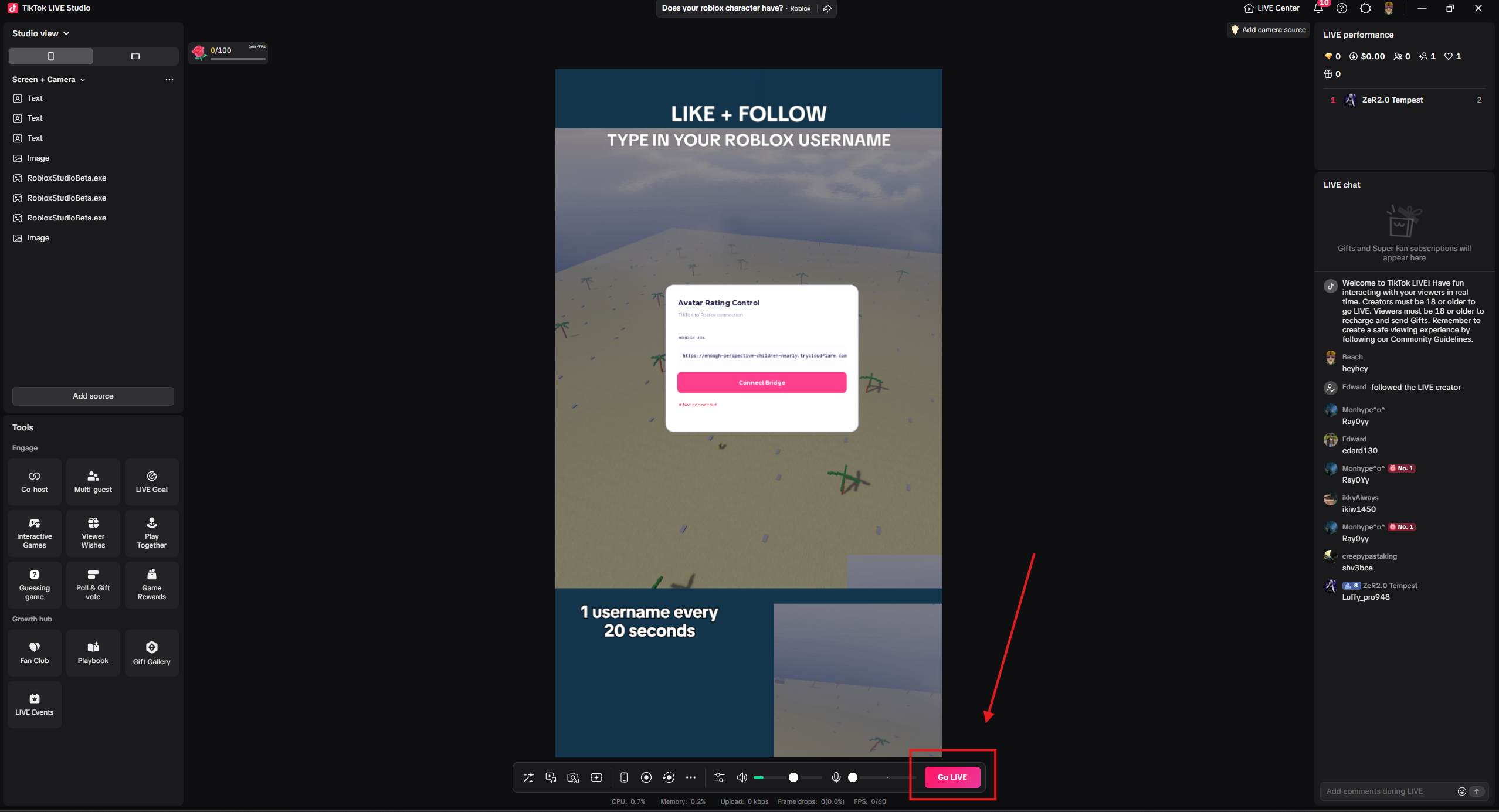
  1. 1Open TikTok LIVE using the account you want to stream from.
  2.        
  3. 2Set up your stream and make sure your LIVE is actually running.
  4.        
  5. 3Keep the LIVE open while using Avatar Rating Studio.
  6.      


03

Launch Avatar Rating Studio

Start the desktop app and connect TikTok


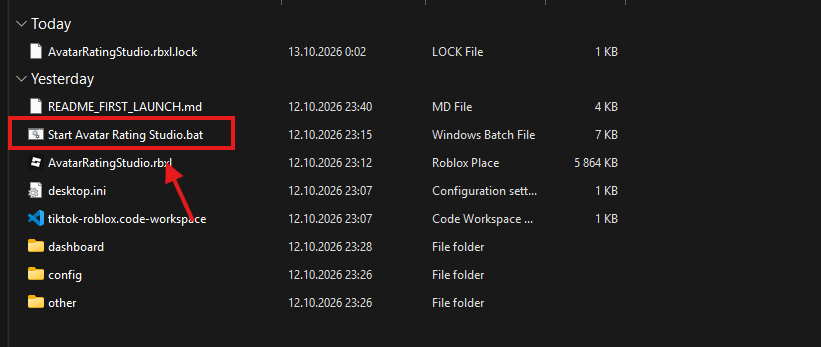
  1. 1Double-click Start Avatar Rating Studio.bat.
  2.        
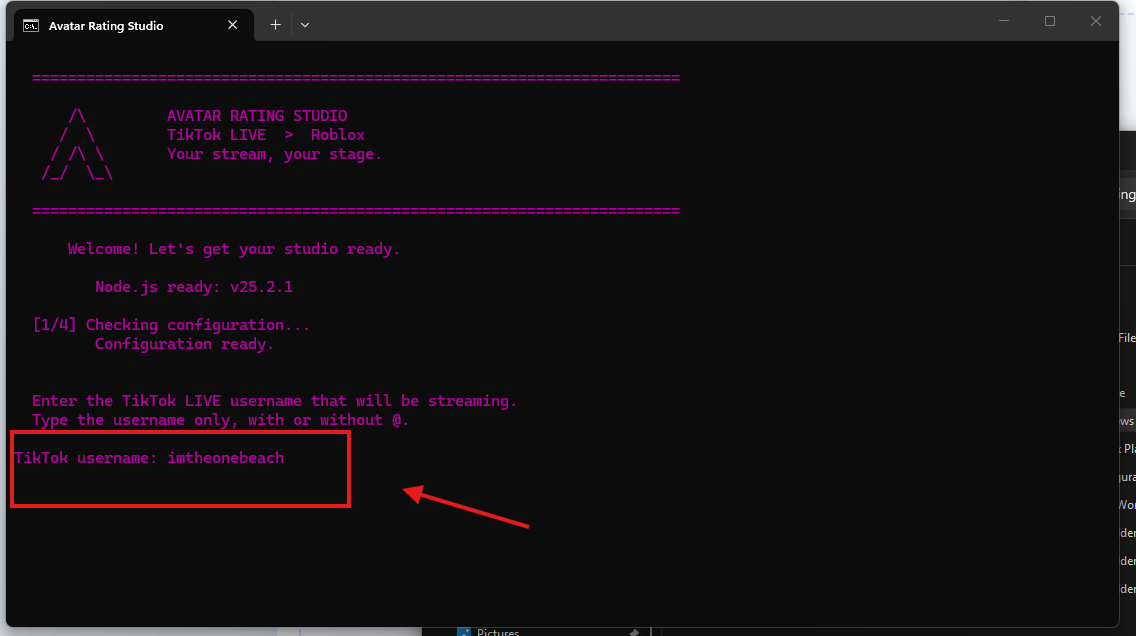
  3. 2When prompted, enter the TikTok username hosting your LIVE, with or without the @ symbol.
  4.        
  5. 3Allow the app to prepare its components and wait for the dashboard to open. Keep the terminal window running.
  6.      


04

Create the Cloudflare Bridge

Generate a URL to connect Roblox


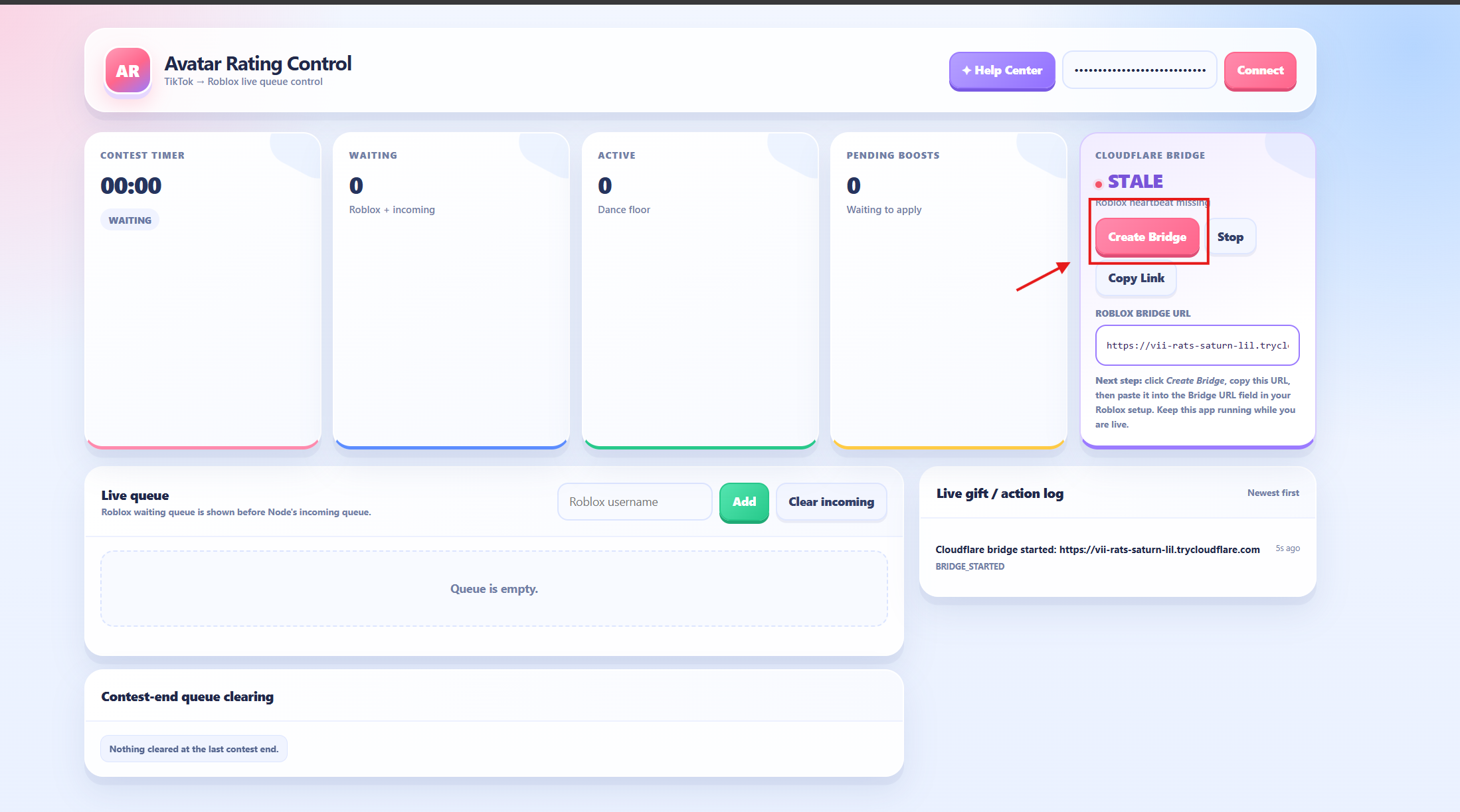
  1. 1In the dashboard, find the Cloudflare Bridge card and click Create Bridge.
  2.        
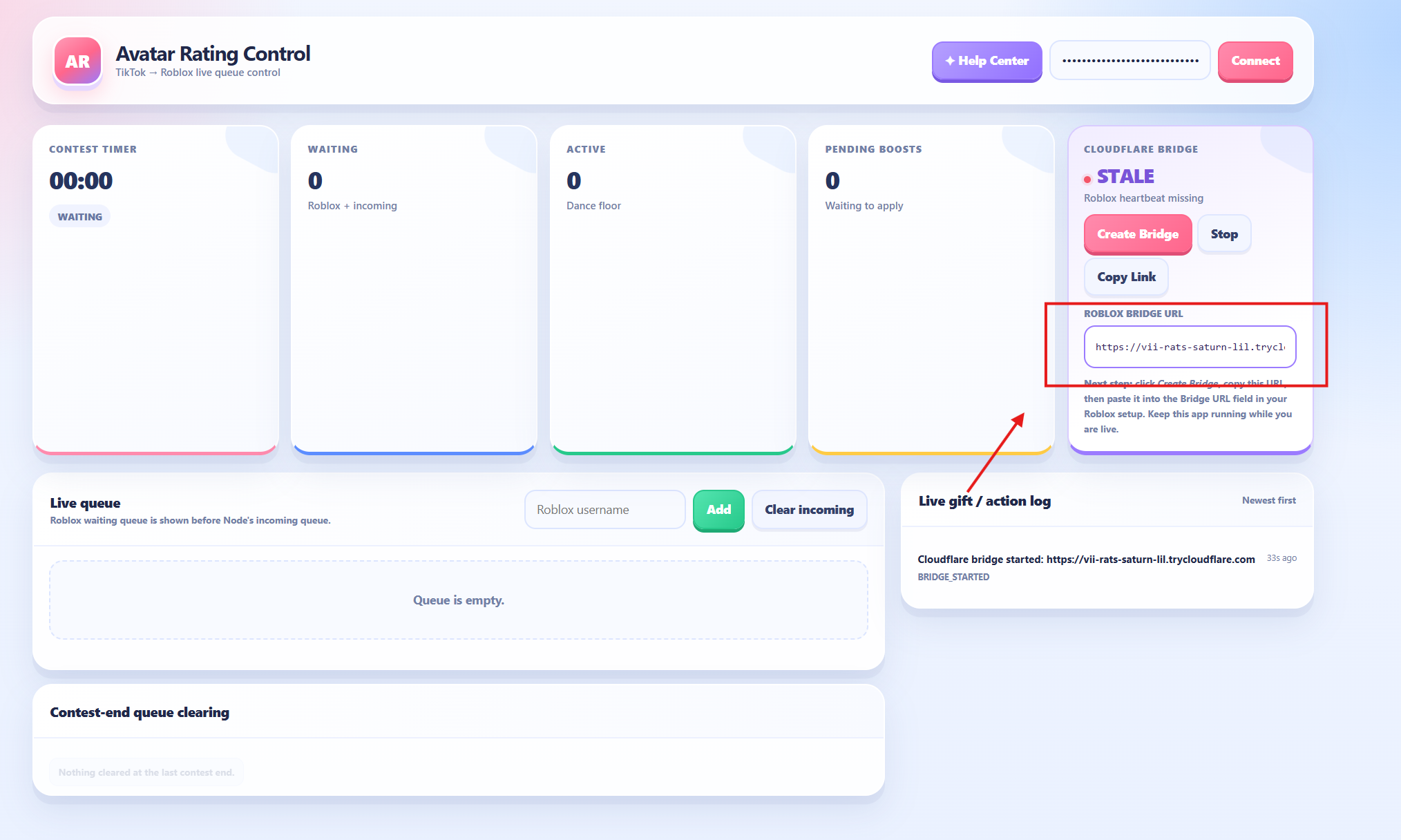
  3. 2Wait for the bridge URL to appear, then click Copy Link or copy the URL manually.
  4.        
  5. 3Keep Avatar Rating Studio running. The temporary URL may change when you create a new bridge.
  6.      


05

Connect Roblox to the Bridge

Paste the URL into the running Roblox game


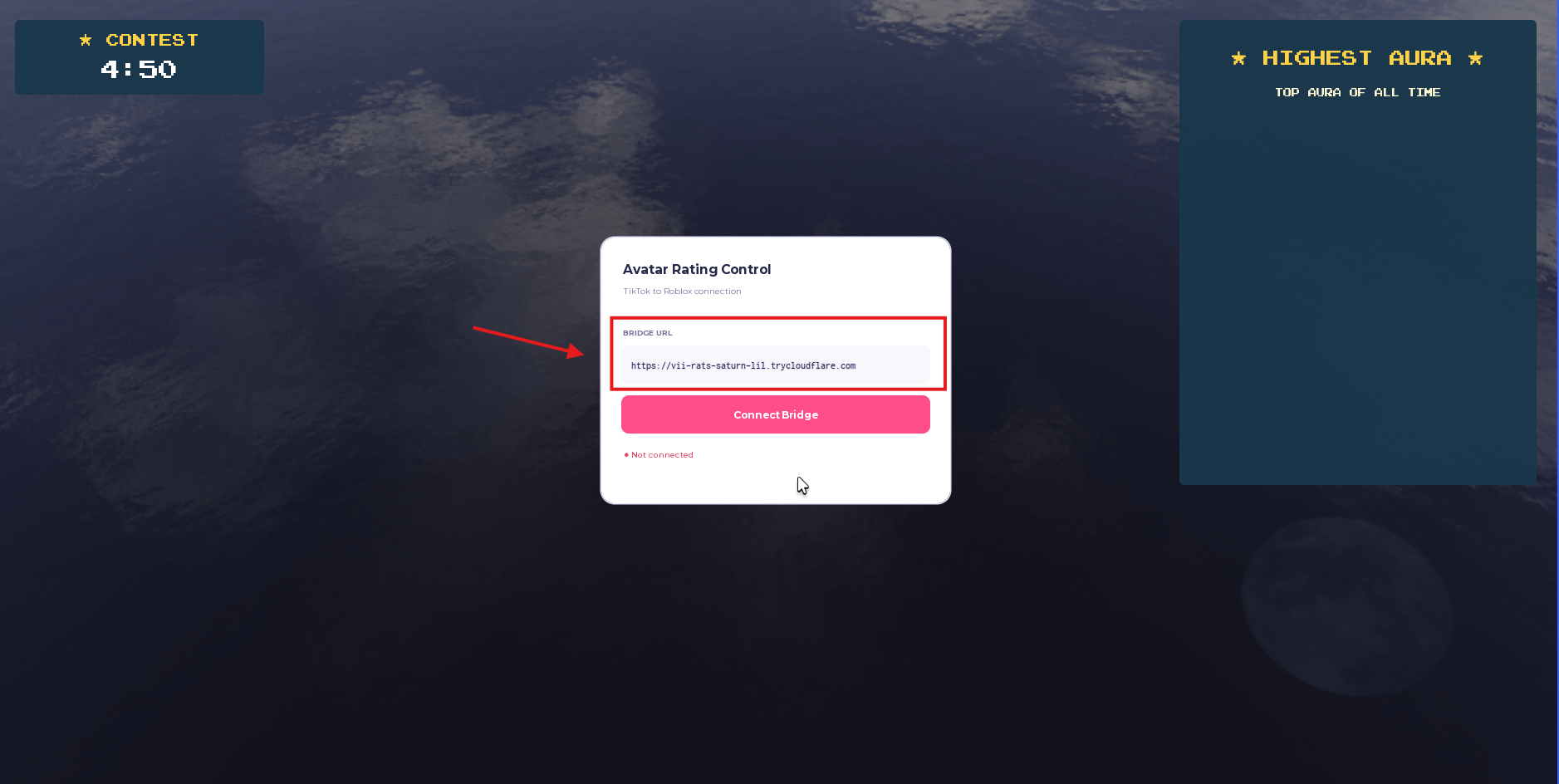
  1. 1Return to the running Roblox Studio test and locate the Bridge URL panel.
  2.        
  3. 2Paste the URL you copied from the dashboard into the Roblox bridge field.
  4.        
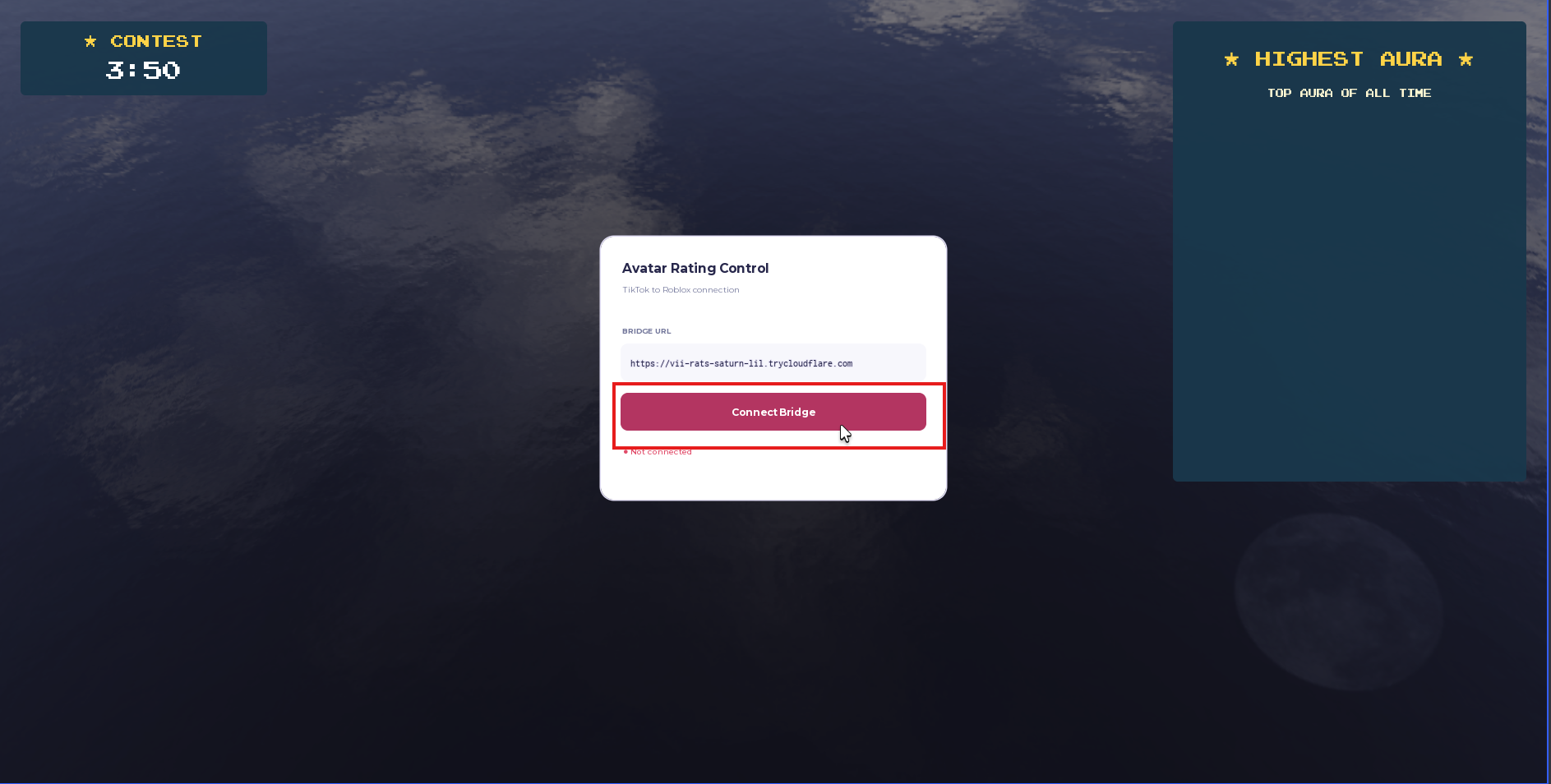
  5. 3Click Connect and wait for a success message. Check the dashboard heartbeat to confirm Roblox is communicating.
  6.      
         
 
Recommended order: start Roblox Studio first, start your TikTok LIVE second, then launch Avatar Rating Studio and connect the bridge.
?

NEED A HAND?

Something not working?

If you get stuck during setup, contact me and I’ll help you troubleshoot.